Auto Color
Give every VS Code and Cursor window its own color, so you always know which project you're in.
ext install WyvernSystemsLLC.auto-color- PriceFree
- LicenseMIT
- RequiresVS Code 1.85+
- NetworkNone
Overview
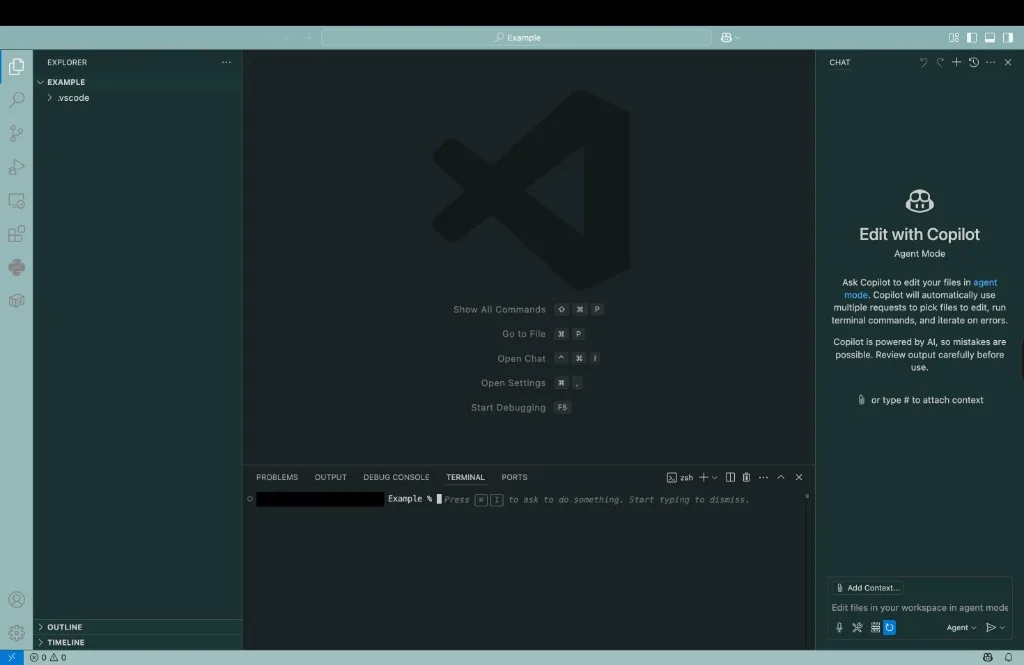
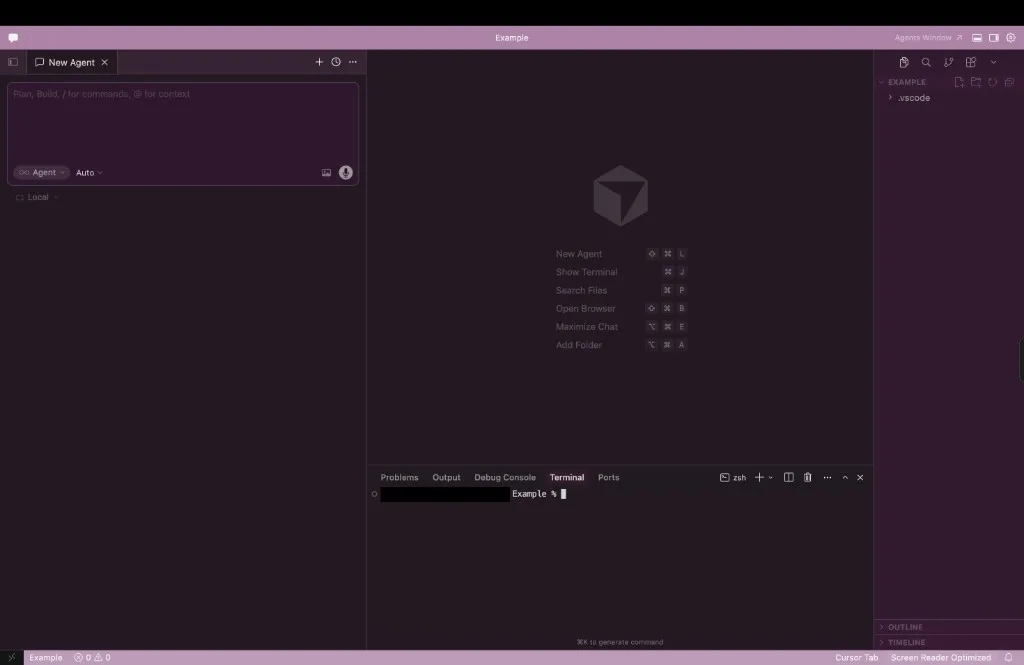
With several editor windows open, every project looks the same. It's easy to run a terminal command, paste code, or continue an AI chat in the wrong one. Auto Color gives each workspace its own color across the title, activity, and status bars, with a matching tint on the editor, sidebar, tabs, and terminal.
The color comes from the project folder, so the same project always gets the same color with no setup. It follows your theme: dark themes get dark tinted surfaces, light themes get light ones, and it repaints when you switch. Your syntax highlighting is left as it is.
Prefer a fixed look? Pick a named theme for any workspace, from Matrix and Dracula to Nord, Solarized, and Gruvbox.
Features
Stable colors, zero setup
Each workspace's color is derived from its folder path. Switch to the folder name or git remote to keep a repo's color across machines and clones.
Follows your theme
Dark themes get dark tinted surfaces and light themes get light ones, repainted automatically when you change themes.
Live-preview picker
Randomize shows candidate palettes applied live. Press Enter to keep one or Esc to go back.
Named themes
Matrix, GitHub Dark and Light, Dracula, Nord, Solarized, Monokai, Gruvbox, One Dark, Synthwave, Ocean, Sunset, and Rainbow.
Choose how much to tint
Color all bars plus the workbench, or only the title and status bars and leave the rest to your theme.
Private by design
No network access and no workspace trust prompt. Colors are computed locally and nothing leaves your machine.
Get started
Install the extension
Search for Auto Color in the Extensions panel, or install it from the VS Marketplace or Open VSX. It works in VS Code 1.85+ and Cursor.
Open a folder
A new project is colored right away, and the palette is saved to .vscode/settings.json.
Opt in for projects with existing settings
Auto Color never edits an existing workspace settings file on its own. Run “Auto Color: Enable for this workspace” when you want it there.
Make it yours
Use Randomize color, Select theme, or Set color scope from the Command Palette.
Works with
Runs in
- VS Code
- Cursor
- Windsurf
- VSCodium
Questions
Will it overwrite my workspace settings?
No. It only adds its own keys to workbench.colorCustomizations and leaves everything else in .vscode/settings.json alone. Turning it off removes only those keys.
Can a repo keep the same color on every machine?
Yes. Set auto-color.identitySource to gitRemote or folderName so every clone of a repo gets the same color.
Does it change my syntax colors?
No. It mainly tints backgrounds, so your color theme still controls how code is highlighted.
How do I turn it off for one project?
Run “Auto Color: Disable for this workspace”. It stops coloring that workspace and removes only the keys it added.
Does it send any data?
No. Auto Color makes no network requests. Every palette is computed on your machine.